(Not my best work) - Creating stable diffusion docker containers for old, unsupported cards (Nvidia Pascal and AMD Polaris)
Let me preface this article with a couple of things, first where this article came from and where this article originated from and state that I'm ware I didn't do that good of a job.
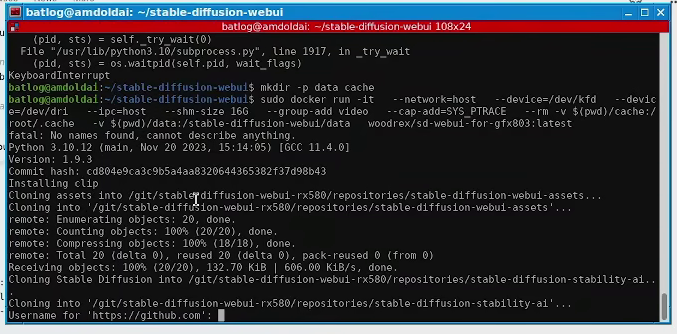
This was originally going to be about getting my 16GB RX 580 SP to run stable diffusion. The way I found to get it to work involved getting a docker container with a (Now ancient) ancient version of Rocm and the AUTOMATIC111111 gui. However, while I was trying to get it to work this happened:
If you don't know what this means, here is the breakdown:
This docker had dependencies that required for things to download to be installed
One of the repos it required to pull was from stability AI
Stability AI either privatised or deleted the repo
github is asking me for stability AI credentials in order to complete the process (Which I obviously don't have).
I can't do anything past this point.
This gave me the idea of making images where everything was just baked in instead of having to pull dependencies. But the sad reality is, this is kind of a bit beyond me. I tried, and I got the images working with the results that I wanted but I didn't get them working how I wanted. They are clunky to use and the CUDA one has errors in the compose file I fixed for this article but that are baked into it
Don't follow this guide for professional ends or hell even AI training, it will just bog down your work, regardless, I invested so much time into this that I feel the need to post it, I may delete or private this entry in the future, I'm a bit embarrassed of it to be honest.
As a final note, I'm using Devuan for the CUDA container and Ubuntu 24 for the Polaris container:
The reason for Devuan is because there's a bug related to systemd when making NVIDIA containers that I didn't want to deal with verbatim from NVIDIA:
There is a known issue on systems where systemd cgroup drivers are used that cause containers to lose access to requested GPUs when systemctl daemon reload is run. Refer to the troubleshooting documentation for more information.
As for the Polaris container, I wanted to use a USB display adapter for the Polaris card because I only have a single PCI slot in the computer the RX 580 is loaded in and wanted to free VRAM from using the display. I don't know if the drivers are compatible with the Linux kervel 7 but honestly I didn't feel like trouble-shooting it so I just used Ubuntu 24 which has an older kernel version.
0. Install docker
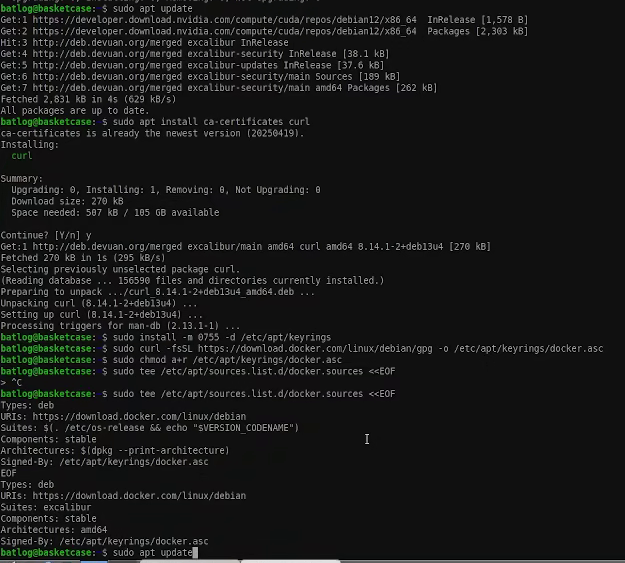
Before you do anything, you need to get docker installed. The instructions to install it depend on the distro but as of time of writing the recommended way to do it is with the following commands:
Installing docker as per the instructions provided
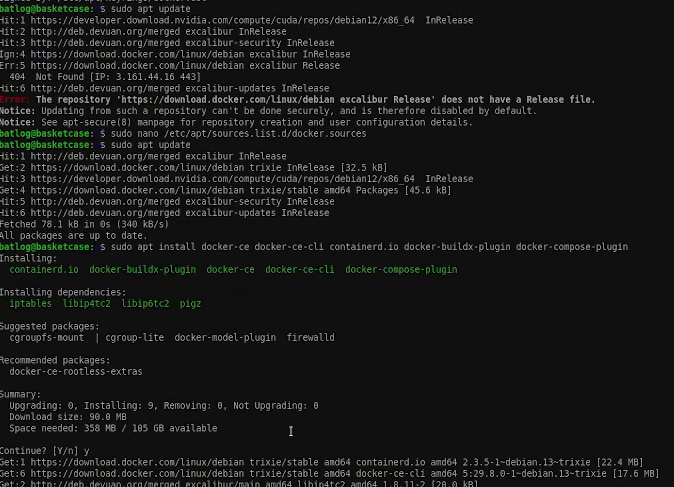
As expected, these instructions worked flawlessly on Ubuntu but I did run into a hiccup with devuan, devuan manages their own release names and given it's a small distro I don't think it even registers as a bleep in docker's rada , as such this particular line Suites: $(. /etc/os-release && echo "$VERSION_CODENAME") makes apt update run with an error.
Go to /etc/apt/sources.list.d/docker.sources and change the line that says 'Suites' from 'excalibur' to 'trixie'.
Fixing sourcesSources error fixed
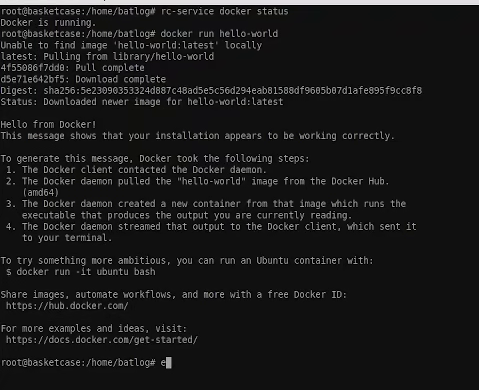
Afterwards just switch to root to check if docker is running and run the hello world image.
# rc-service docker status
docker run hello-world
You can now move to making images.
1. Making a CUDA container
Docker really only requires two documents in order to work, a config file and a Dockerfile that dictates the instructions to build the image. I'm going to briefly explain what each do.
I think most of it is self-explanatory except for a couple of parts, first of all the volumes. The volume on the left is your host and the volume on the right is the image, the 'models' directory gets auto-generated by sdnext when running (You may want to add a second volume for the output, I didn't because I usually save the images I like manually.
The reservations is a section that applies with CUDA as far as I know due to the way nvidia drivers are distributed and licensed.
Now, for the dockerfile I did this:
Dockerfile:
FROM nvidia/cuda:12.6.3-cudnn-runtime-ubuntu24.04
ENV DEBIAN_FRONTEND=noninteractive
ENV PYTHONUNBUFFERED=1
RUN apt update && apt install -y \
git \
python3-venv \
libgl1 \
libglib2.0-0 \
bc \
wget \
&& apt-get clean && rm -rf /var/lib/apt/lists/*
EXPOSE 7860
RUN groupadd dockuser && \
useradd -g dockuser -m -s /bin/bash dockuser
RUN git clone https://github.com/vladmandic/sdnext
WORKDIR /sdnext
COPY wrapper.sh /sdnext/wrapper.sh
RUN chmod +x /sdnext/wrapper.sh
RUN chown -R dockuser:dockuser /sdnext
USER dockuser
RUN /sdnext/wrapper.sh
ENTRYPOINT ["/bin/bash", "./webui.sh"]
CMD ["bash", "webui.sh", "--listen"]
There are a few notes here, as you can see it's sort of making a script to recreate a small linux environment contained in an image (The difference with an actual distro being that docker only works in the application layer and borrows elements from the host machine in order to work).
The first note is why I created the user and an important piece of advice about it. By default sdnext doesn't allow root to run the installation (root is the default on docker), therefore I had to make this user. Now, a point of note here is that I assigned the user a shell, this is very important because if left unassigned sdnext will just fail to install.
The second note is that mysterious wrapper.sh script. As stated on the intro of this article, I didn't want a container that would pull everything online as I believe the resources will eventually die (The version of pytorch I use for nvidia pascal is particularly at risk imo). This posed an interesting challenge though, if I wanted to do a baked install of sdnext I would have to run the installation script but the problem is that the installation script never stops executing and as such docker will never finish building the image.
What I ended up doing is timing how long sdnext took to install (It took 13 sodding minutes each time) and then add a couple more minutes. This, however posed a second challenge as sending a signal interrupt / SIGINT inside the docker immediately stops the process (But sdnext's install script requires it to exit gracefully). Therefore I had to figure a way for the program to automatically stop after 15 minutes and for the sigint to not kill docker from building the image.
What I ended up coming with was this wrapper script:
wrapper.sh:
#!/bin/bash
set TORCH_COMMAND='torch==2.9.1 torchvision==0.24.1 torchaudio==2.9.1 --index-url https://download.pytorch.org/whl/cu126' export TORCH_COMMAND='torch==2.9.1 torchvision==0.24.1 torchaudio==2.9.1 --index-url https://download.pytorch.org/whl/cu126' timeout --signal=INT 15m /sdnext/webui.sh --use-cuda status=$? case "$status" in 124|130) echo "Expected timeout/interrupt; treating as success" status=0 ;; esac exit "$status"
What that does is that it catches the interrupt signal (124) and turns it into a 0 which means the program executed successfully.
Bear in mind this meant every time I committed a mistake I'd have to wait 15 minutes to try again, it was absolutely tedious, but in the end I -kind of- got it.
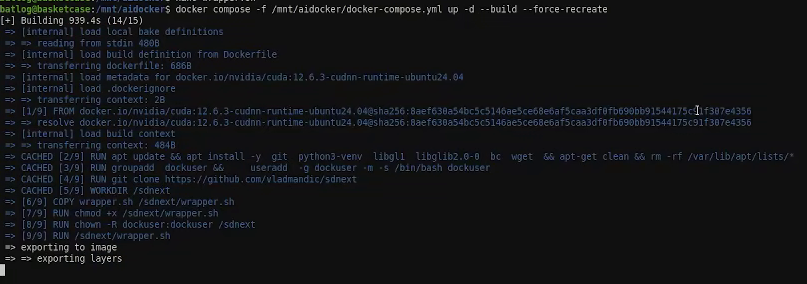
When you think you have your image configured correctly run the following (Ignore the --force-recreate flag, I was using it in order to clean previous failures):
# docker compose -f <path to your yml config file> up -d --build
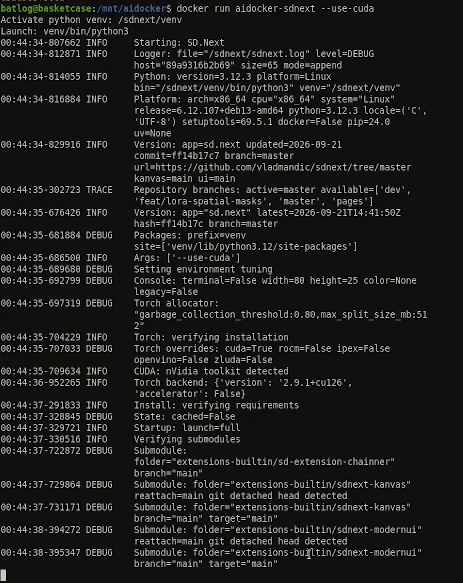
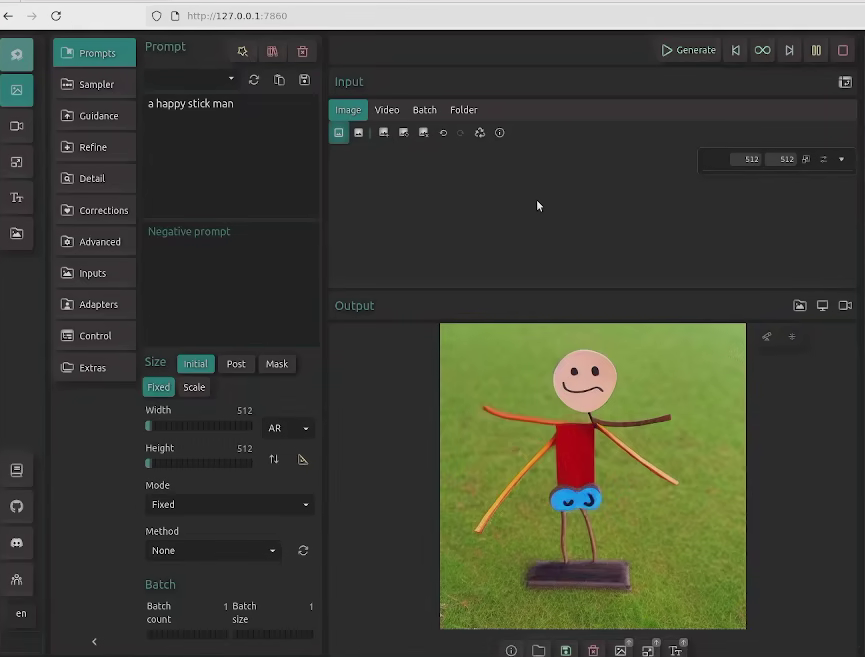
That seemed to bake the image the exact way I wanted... except for one detail. The network connection to the container didn't work, the image worked fine as shown below, it was just the connection that didn't.
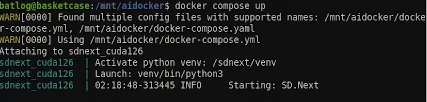
Luckily though, simply using docker compose up worked without issues.
running docker compose upmaking a beautiful stickman with the most basic model
2. Making a Vulkan container for Polaris
My next idea sounded more challenging on paper as I wanted to get my old AMD Polaris card working, if you've never heard about it, AMD cards previous to the RX 7900 XT can be kind of a pain to run, however it seems someone managed to get sdcpp working with Vulkan, which means just about any modern GPU will work as long as you don't go fully esoteric (See: Siliconmotion, Imagination or VIA gpu's) and since it's written in C it's very portable out of the box as long as you meet the correct dependencies as it doesn't have a venv or any of that nonsense.
So, I kind of didn't care much about this one, consider the following as a 'proof of concept' I never bothered to fix.
The only notable lines in this one is that devices points to a different directory and is a single line as Docker should have vulkan bootstrapped by default when using an ubuntu image as a base.
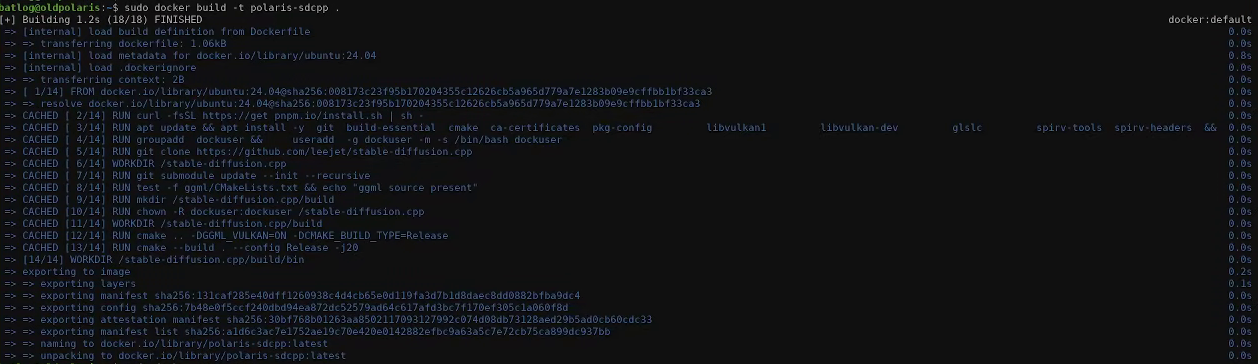
And, here is the docker file:
FROM ubuntu:24.04
ENV DEBIAN_FRONTEND=noninteractive
RUN curl -fsSL https://get pnpm.io/install.sh | sh -
RUN apt update && apt install -y \
git \
build-essential \
cmake \
ca-certificates \
pkg-config \
libvulkan1 \
libvulkan-dev \
glslc \
spirv-tools \
spirv-headers \
&& apt-get clean && rm -rf /var/lib/apt/lists/*
EXPOSE 7860
RUN groupadd dockuser && \
useradd -g dockuser -m -s /bin/bash dockuser
RUN git clone https://github.com/leejet/stable-diffusion.cpp
WORKDIR /stable-diffusion.cpp
RUN git submodule update --init --recursive
RUN test -f ggml/CMakeLists.txt && echo "ggml source present"
RUN mkdir /stable-diffusion.cpp/build
RUN chown -R dockuser:dockuser /stable-diffusion.cpp
WORKDIR /stable-diffusion.cpp/build
USER dockuser
RUN cmake .. -DGGML_VULKAN=ON -DCMAKE_BUILD_TYPE=Release
RUN cmake --build .
USER root
WORKDIR /stable-diffusion.cpp/build/bin
ENTRYPOINT ["/bin/bash", "./sd-cli"]
CMD ["bash", "sd-cli", "--listen"]
As you can see it's very similar to the last one, only this time I didn't use a wrapper. And it built first time without issues.
Now, looking back maybe I should've added one because long story short, while it built successfully, it never actually ran; It did read the binary in /build/bin, but it always failed to execute it with some cryptic, unhelpful error message.
Why do modern devs hate verbose error messages, man?
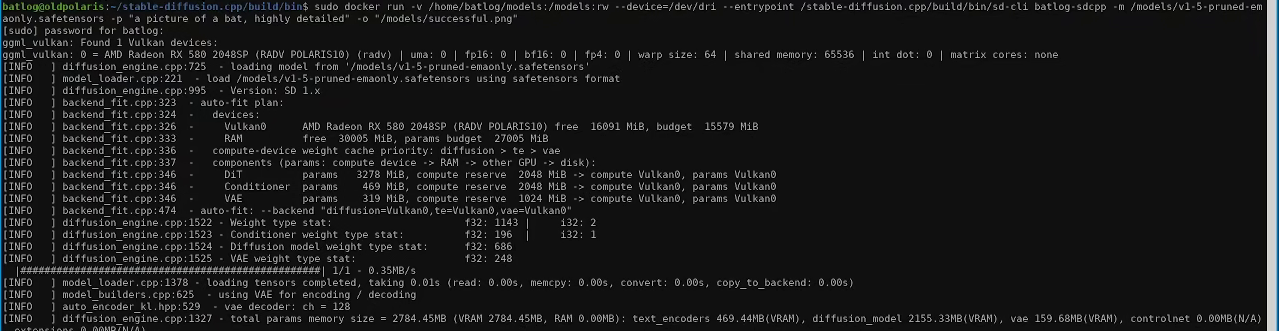
here is the kicker though. The image works... but you more-or-less have to specify everything that's contained in the yml file manually. In the end, this was the long line that finally got me working:
# docker run -v <host directory for models and images>:<container directory for models and images>:rw --device=/dev/dri --entrypoint /stable-diffusion.cpp/build/bin/sdcli <name of container> -m <modeltobeused> -p <my prompt> -o <image name>
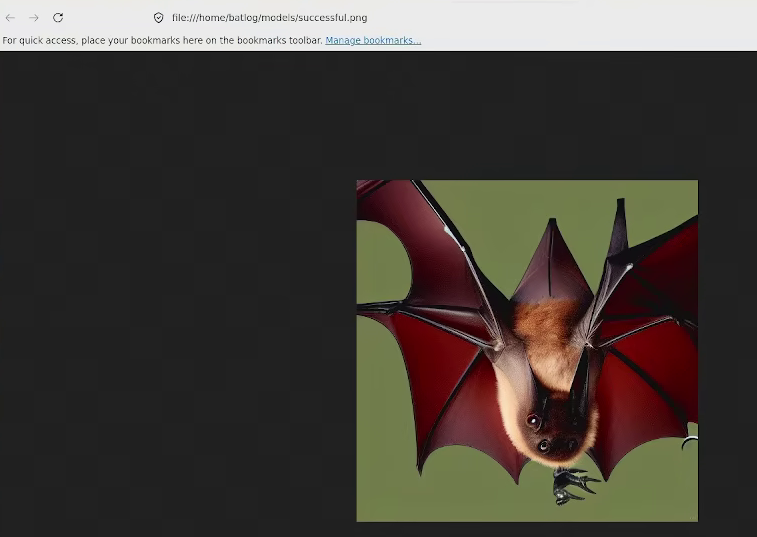
And yes, it did generate a beautiful bat
lol
As I stated, looking back I think I just needed a bash script to execute the binary but I don't feel like doing this anymore lol, I have a couple of ideas for my Polaris card going forward and neither involve docker.
Addendum 1: Why I even posted this.
Despite my incompetence I think this is still worth researching and putting time into it, getting a GPU is getting harder and harder. I was lucky to get old GPU's with high VRAM at decent prices (No joke, I think my 16GB 580 2048 was 60 dollars), but I know that's not the case for everyone and I know I sure as hell cannot afford a 16+GB GPU anymore...
... I may or may not have also spent an embarrassing amount of time on the CUDA container and decided to publish this to feel like I didn't waste my time.
Finally, I believe also important to acknowledge and document your fuckups sometimes so if you ever revisit the subject in the future you won't repeat the same mistakes. Who knows, I may end up revisiting this at some point.